Harbor
Own your files again.Keep the clouds you like.
One dashboard for every drive and cloud you have, and a calm path to bring your files home at your own pace.
See
Every drive and cloud you have, in one dashboard; clouds connect read-only by default, so connecting changes nothing.
Own
One-click imports pull a complete copy of everything onto a drive you own, and nothing is deleted.
Decide
Choose where things live from now on, one folder at a time; keep the clouds that earn their keep, and quietly stop paying for the rest.
Setup in three steps.
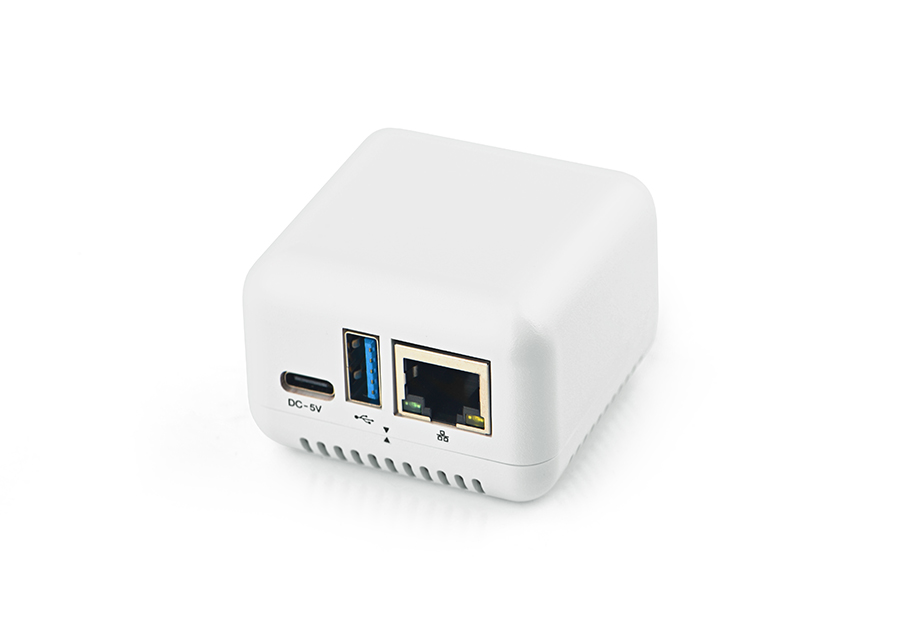
Plug in your drive
Any USB drive into the dock
Connect to router
One ethernet cable from the dock
Join your private network
Sets up an encrypted channel to your drive
Install a free app on each device. Sets up a private encrypted channel between your device and your hard drive.
How it actually compares.
Each option has real pros and real cons. Harbor isn't the best at everything; it's the right fit for a specific audience that the other two don't serve well.
- Excellent mobile sync and sharing
- Files on a third-party server
- Rent that scales with how much you store
- Subject to their policies and outages
- Your files on a drive you own
- One-time purchase. Never needs a subscription.
- Pulls in your existing cloud accounts
- Single drive, files-only on v1
- RAID, snapshots, transcoding
- Mature mobile apps and ecosystem
- Higher hardware cost
- Saturday project to set up well
✓ strength · - tradeoff · ✕ weakness. We picked these rows to be useful, not flattering.
Just type harbor
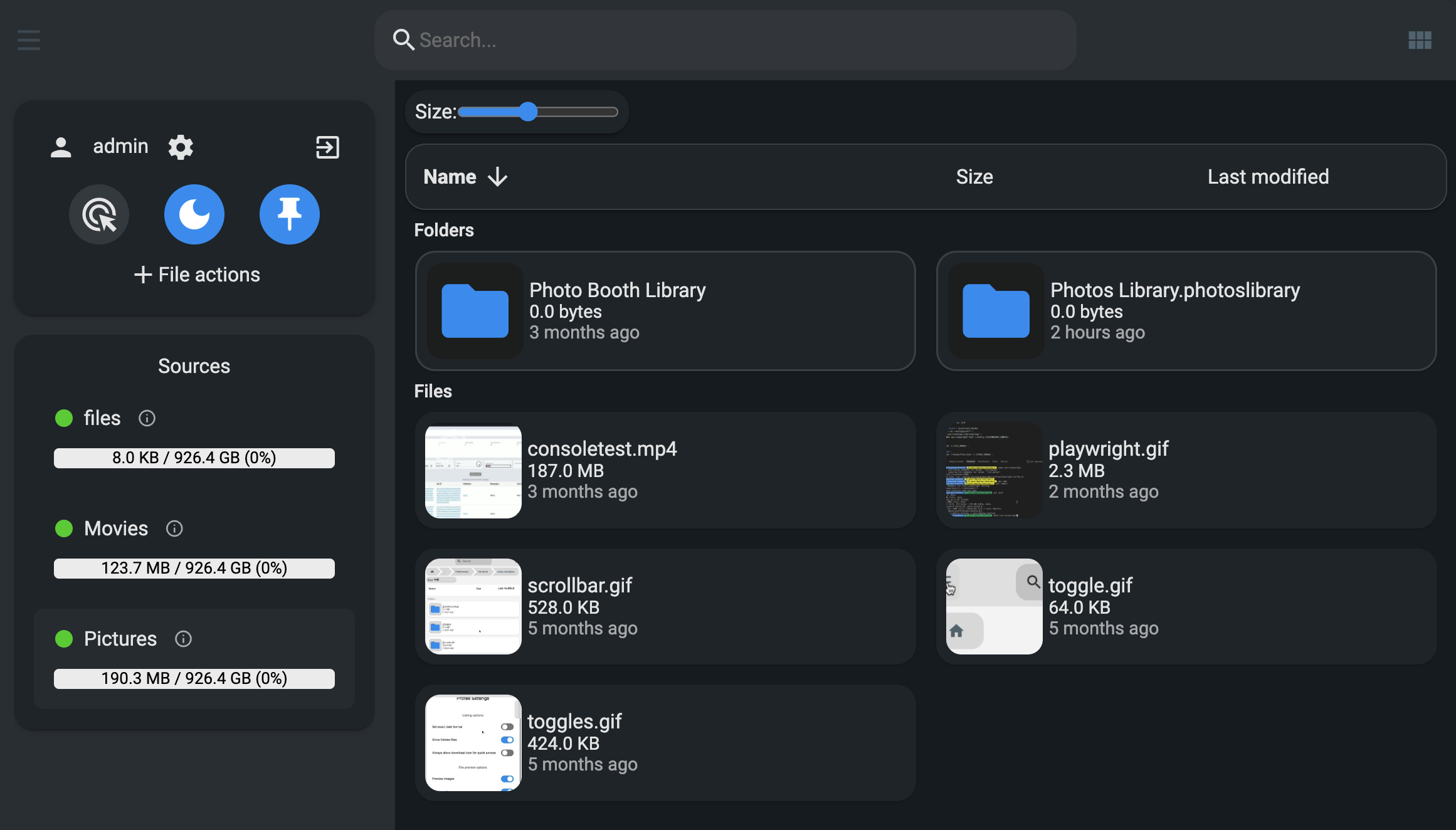
No account. Open any browser on your network, type harbor, and you're in. Drag, drop, preview, search. A full file manager that feels like a cloud drive but stays in your home unless you choose otherwise.
Your drive
Stays physical
Private tunnel
Encrypted end-to-end
Your device
Approved access
Bring everything home
Your cloud accounts, in one place.
Connect the services you already use; clouds connect read-only by default, so connecting changes nothing. Import your files once, or use their free tiers as distributed backup. One UI, all your storage.
Dropbox
Connected
Google Drive
Connected
Proton Drive
Connected
Box
free tier
OneDrive
free tier
Mega
free tier
Backup overview
auto-balanced across free tiers
Photos
Proton Drive
4 GB used / 5 GB free
Documents
Mega
12 GB used / 20 GB free
Videos
n/a
Not backed up
With one dock, Harbor can use your existing cloud free tiers as distributed backup. With two docks, they sync to each other over your private network. You decide.
Works with Dropbox, Google Drive, Proton Drive, Box, OneDrive, Mega and any other service supported by rclone. Ongoing development; the provider list expands as we ship.
Know where every copy is.
Harbor keeps one page that answers the question backups usually leave open: what do I have, where is it, and is it still good? Every folder is checked against every place that holds a copy of it, and Harbor tells you the gap in plain words instead of a score.
A drive in a drawer
Plug in any USB drive and Harbor copies your folders onto it, then remembers what it holds and where you put it. Unplug it and it stays in the catalog, with a nudge when the copy gets old.
A second dock
Put one at a parent's house. The two sync over an encrypted private network, so a fire or a theft at one address never takes both copies. No subscription involved.
A cloud you already pay for
Free tiers work fine as an encrypted replica. Files are encrypted on your dock first, so the provider stores ciphertext and the key never leaves the box.
Copies are verified on a schedule, not assumed. Overwritten files are kept so you can go back to last Tuesday, and a change big enough to look like a mistake pauses and waits for you.
One product, three ways to run it
Choose where Harbor lives.
The same open code runs every tier. Host it free on your own hardware, buy the plug-in box, or add the optional cloud companion later.
Harbor Self-Hosted
Run it yourself. The same software as the Dock, on hardware you already have.
- One binary or a Docker container, on any server or old PC
- Clouds connect read-only by default; connecting changes nothing
- One-click imports pull copies; nothing is deleted
- Open code you can audit, so the privacy claims are checkable
Harbor Dock
Plug it in. That's it. A small box plus your USB drive.
- Every drive and cloud you have, in one dashboard
- Private mode: one switch pauses all cloud traffic
- Files encrypted on the Dock before any cloud backup; the recovery key never leaves it
- Private folders that never upload, and harbors that span providers
- Complete on day one; no subscription, ever
Harbor Cloud
An optional companion for the things a box in your house cannot do.
- Remote access without port forwarding
- Encrypted offsite replica, encrypted on your device before upload; we cannot read it
- Share links that work while the Dock is asleep
- Health alerts when a drive or backup needs attention
- Never gates a local feature
The Dock never needs a subscription. It is complete on day one.
Harbor Cloud adds only the two things a box in your house cannot do: reach you anywhere, and survive a house fire.
Your AI can see your whole library through one connection, and it can only suggest. Every change needs your approval, and every change is undoable.
Every tier runs the same open code, so the privacy claims are checkable on all of them.
Running a team on shared drives and scattered clouds? Ask about Harbor for teams.
Honest about what we're not
What this isn't.
We're building one specific thing well, not everything for everyone. Knowing what Harbor isn't is part of trusting what it is.
Not a Synology replacement
Power users want RAID, ZFS, snapshots, video transcoding, multi-user permissions. Harbor has none of these on v1. If you need a real NAS, buy a real NAS.
Not iCloud Photos
Most people pay for iCloud because of automatic photo backup with deduplication and AI organization. Harbor v1 is file management, not a photos app. If your photo library is the thing you need replaced, this isn't for you yet.
Not a box you have to buy
If you're comfortable on a Pi or an old PC, you don't need our hardware. Harbor Self-Hosted is the same software, free, with the source opening soon. The Dock exists for people who would rather plug something in than maintain it.
Not a public file host
You can hand someone an expiring link to a file when you need to. What Harbor won't do is act as a public host: no storefront downloads, no hosting a website, no high-traffic distribution. It serves your files to you and the people you choose.
If something here disqualifies Harbor for you, that's the right outcome. If you want what's left, we'd like to talk to you.
Why this exists
Harbor exists because paying a monthly fee for space on a drive you already own is absurd, and because the alternatives assume you want a Saturday project.
If you already self-host, you can run Harbor yourself for free; it's the same software the Dock runs, one binary, and the source is opening soon. The Dock is for everyone else: a small box, an opinionated set of preinstalled services, and a UI that treats your existing cloud accounts as part of the storage picture instead of pretending they don't exist. Plug in a USB drive, connect Dropbox or Proton or whatever you already pay for, and the dock helps you organize and back things up across all of them.
We're building this in the open and pre-launch. The dock software will be open source, and the source is opening soon, so even if we don't make it, the box you bought stays useful and forkable. Right now we're gathering interest before committing to a production run. If enough people want this, we'll build it. Tell us what you'd want it to do; we're listening.
Questions, answered.
How does it connect to my devices when I'm away from home?+
Harbor uses Tailscale, a widely-used networking service built on WireGuard. You install the free Tailscale app once on each device. In most setups your phone talks directly to the dock over an encrypted tunnel, with nothing in between. When a direct connection isn't possible (some mobile carriers, restrictive wifi), Tailscale relays the encrypted traffic; they can see that you connected, not what you sent. Harbor's servers are never in the data path; we don't see your files at any point.
Can I import files from Dropbox, Google Drive, or other cloud accounts?+
Yes. Clouds connect read-only by default, so connecting changes nothing on the provider side. The dock includes an rclone-based UI that connects to Dropbox, Google Drive, Proton Drive, OneDrive, Mega, Box, pCloud, and any other service rclone supports. You can pull files in once for archival, or opt in to ongoing one-way or two-way sync per folder. The connection lives on your dock, not on a Harbor server, so the credentials stay with you. iCloud Drive is the one major holdout; see the next question for why.
How does Harbor actually see my files across all those clouds?+
The dock runs rclone, an open-source tool that's been talking to cloud storage APIs for over a decade. The big players (Google Drive, Dropbox, OneDrive, Box, pCloud) expose clean OAuth APIs and work day one. End-to-end encrypted providers like Proton Drive and MEGA are doable too, but take a bit more plumbing on our side because the dock has to hold your keys (the cloud never sees them). The notable exception is iCloud Drive: Apple doesn't publish a third-party API, so no tool, rclone or otherwise, can read it directly. For iCloud Photos you can run Apple's official export on a Mac and drop the archive on the dock; iCloud Drive itself stays in Apple's walled garden. Everything else most households use is fair game.
How do I share files with someone who doesn't have a Harbor Dock?+
The dock uses Tailscale Funnel, a feature that generates a one-off public HTTPS link for a specific file or folder. The link routes through Tailscale's encrypted edge to your dock and streams the file directly to the recipient, with no public IP or port forwarding on your home network. You can attach a password, set an expiry, or limit views. For friendlier-looking URLs, the dock can also push the file to one of your connected cloud providers (Google Drive, Dropbox, etc.) and use their native share link. For small files, an email attachment works in one tap. The recipient never needs a Tailscale account or a Harbor Dock.
What if I only have one dock, how does backup work?+
Harbor uses your existing cloud accounts as distributed backup. Connect Proton Drive, Mega, and a couple of other free tiers, and the dock spreads encrypted file copies across them automatically, staying under each provider's free-tier limit. The backup overview UI shows what's stored where, so you can see at a glance which folders are covered and which still need a target. Pairing two docks gives you the cleaner mutual-sync story; the cloud-free-tier approach is what gets most people a real off-site copy without spending a cent extra. Harbor Cloud, a planned optional subscription, will add a managed encrypted offsite replica for people who want that instead.
Why ARM and not a mini PC?+
ARM single-board computers are the right shape for always-on appliance storage: single-digit watts idle, low heat, no fans, designed to run for years. The dock is meant to live behind a TV or in a closet, not to crunch numbers. The bottleneck for storage like this is the USB drive and the network, not the CPU. A mini PC would be more powerful but consume 4 to 6 times the continuous power for no benefit on this workload.
Does it work on iPhone, Android, and desktop?+
Yes. Mac, Windows, Linux, iPhone, and Android all work. Once you install Tailscale on your device, the dock appears like a local server. Open any browser, type its name, and your files are there.
What happens if my home internet goes down?+
Devices on your home Wi-Fi can still access the dock normally. It is a local network device first, remote second. Remote access from outside the home pauses until your internet returns, the same as any home server. Your files are never lost; they live on your drive.
What's in the box?+
The Harbor Dock itself, a small low-power device, plus a power adapter, an Ethernet cable, and a quick-start card. You bring your own USB drive (any size, any brand).
What size USB drive can I use?+
Any standard USB drive works. Common sizes range from 1TB to 20TB. Use one drive for personal storage, or pair two docks (one at home, one at a friend's or family member's place) for automatic encrypted off-site backup.
What happens if the drive dies?+
A single dock with a single drive has the same failure profile as any single-drive setup: if the drive fails, what was on it is gone. Harbor isn't a RAID array; we don't pretend it is. The intended pattern for anything you can't afford to lose is two docks at two locations, syncing to each other. That's the off-site backup story. If you only buy one dock, treat it like you'd treat any external drive holding important files: keep a separate copy of the photos and documents you can't replace.
How much power does it use?+
It's a low-power ARM device designed to run 24/7, like a Wi-Fi router. The impact on your electricity bill is minimal, closer to a smart hub than a desktop computer.
Will it be open source?+
Yes. That is a commitment, not a maybe; the source is opening soon. The dock software and companion tools will be open for anyone to audit, build, or fork, and every tier runs the same open code. You probably won't ever need to look at it, but knowing the option exists is the difference between owning your storage and renting it.
What if Harbor the company disappears?+
Your drive keeps working. Files are stored in standard formats. Plug the drive into any computer and read them directly. Tailscale is independent infrastructure that keeps running without us. You are never stranded.
Do I need a subscription?+
No. The Harbor Dock never needs one; it is complete on day one and works fully, forever, without any paid plan. Harbor Cloud is an optional extra that only adds the things a box in your house can't do: remote access from anywhere and an encrypted offsite replica. Skip it and you lose nothing local.
What is Harbor Cloud?+
A planned optional subscription, about $6 a month, covering what a box in your house can't do on its own: remote access without port forwarding, an encrypted offsite replica (encrypted on your device before upload, so we can't read it), share links that keep working while the dock is asleep, and health alerts. It never gates a local feature. The Dock and the self-hosted version work fully without it.
Can I run it without buying anything?+
Yes. Harbor Self-Hosted is the same software the Dock runs, free to run yourself: one binary or a Docker container on any server or old PC. The source is opening soon. The Dock exists for people who would rather plug in a box than maintain one.
Can I use AI with my files?+
Yes, on your terms. Harbor speaks MCP, the open protocol AI assistants use, so the assistant you already have (hosted or a local model on your own machine) can see your whole library through one connection instead of you wiring it into five clouds. You choose exactly which folders it can see and whether it can read contents or just names; files that look sensitive are hidden from it automatically. The AI can only suggest reorganizations: every change waits for your approval in Harbor, runs through the trash so nothing is destroyed, and can be undone afterward.
Get early access.
Harbor Dock
Complete on day one. No subscription, ever.
No charge today. Leave your email to be first in line when we launch. Drive not included. Use any USB hard drive you already own.